
Applies to
CommBox Classic S5 running Huntsman firmware or later with CommBox OS Experience enabled; administrator access.
Before you begin
CommBox OS Experience is enabled.
You have administrator access to the screen’s CommBox Experience settings.
Step-by-step instructions
Step 1: Open Automations
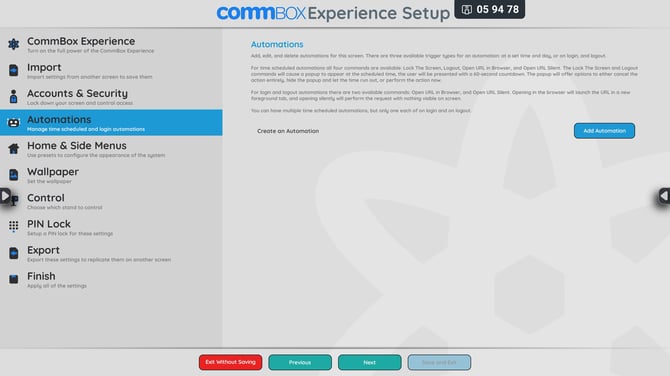
Open the CommBox Experience app and navigate to Automations.
Step 2: Add an automation
Select Add Automation.
Step 3: Choose a trigger
-
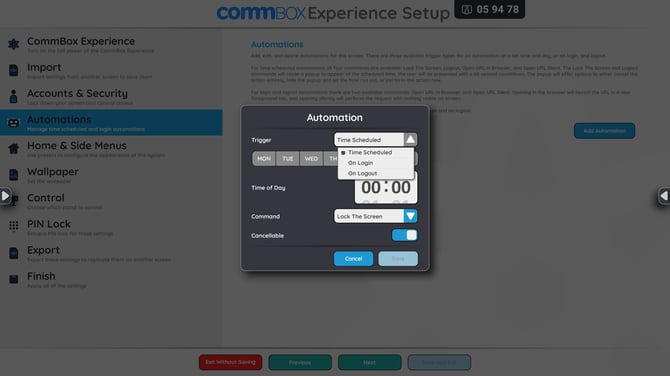
Time Scheduled: runs at a chosen time on selected days.
-
On Login: runs when a user starts an account session.
-
On Logout: runs when a user ends an account session.
Step 4: Choose the command
-
For a scheduled automation, choose Lock the Screen, Logout, Open URL in Browser or Open URL Silent.
-
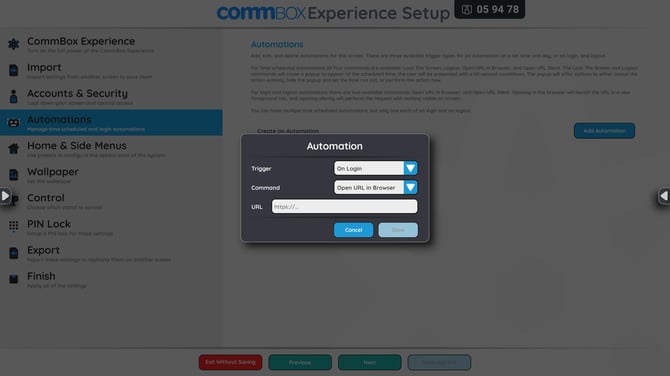
For login and logout automations, choose Open URL in Browser or Open URL Silent.
-
For a URL command, enter the complete web address, including https://.
Step 5: Save and test
Save the automation. Test it at a suitable time before applying it widely.
Important notes
-
You can create multiple time-scheduled automations, plus one login and one logout automation.
-
Scheduled lock and logout actions show a 60-second countdown. When Cancellable is enabled, users can cancel the action before the countdown ends.
-
A scheduled logout at the end of the day helps protect accounts on shared screens.
Troubleshooting
-
If an automation does not run, confirm the trigger time, selected days, time zone and command are correct.
-
If a URL does not open, enter the full address including https://.