
Step 1: Install Keeper and sign in
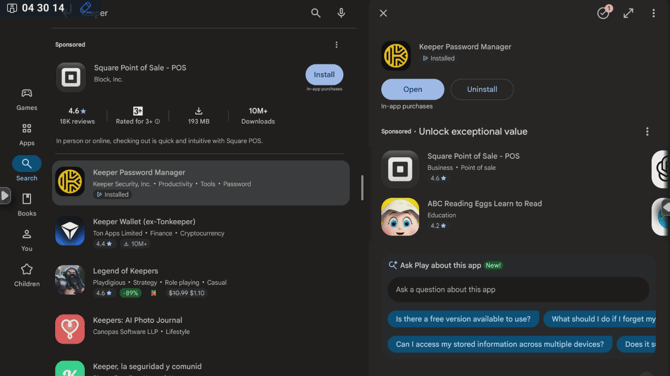
Open the Google Play Store on your screen and search for Keeper Password Manager. Tap Install, then open Keeper and sign in to your account.
Step 2: Enable KeeperFill
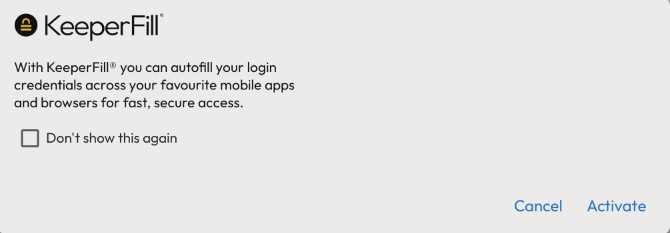
In Keeper, open Settings and turn on KeeperFill.
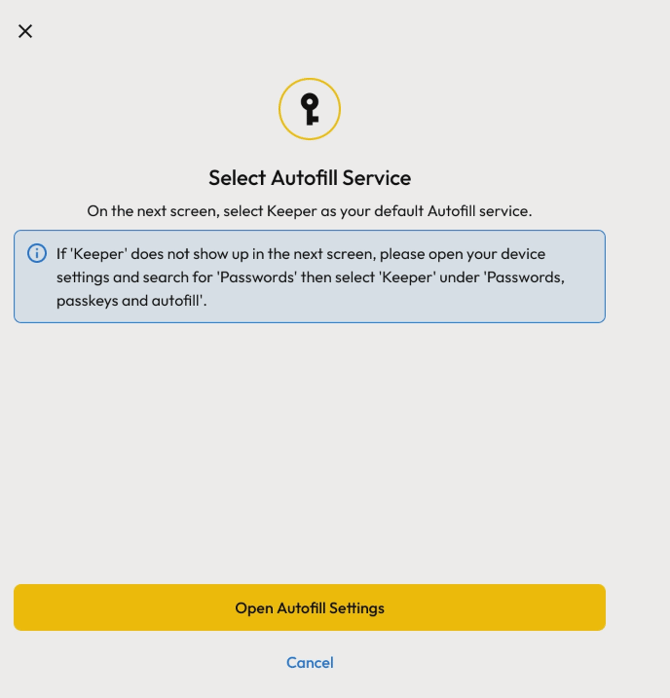
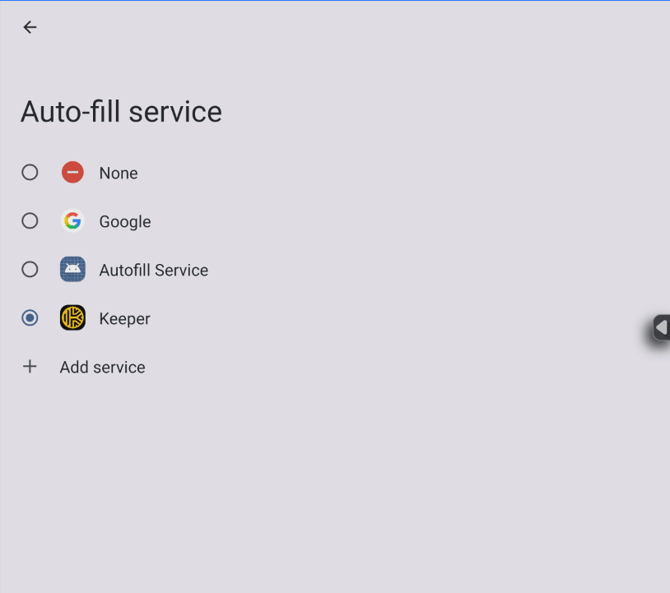
Follow the setup prompts and select Keeper when asked to choose an autofill service. Complete the remaining prompts, then return to Keeper.
Step 3: Check autofill in an app
Open an app with login details saved in Keeper.
Tap the username or password field, then select the matching saved login when Keeper’s suggestion appears. Unlock Keeper if prompted.
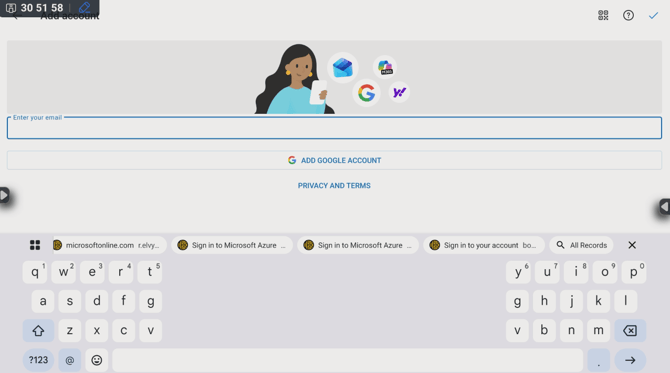
To use Keeper on websites in Google Chrome, complete the remaining steps.
Step 4: Open Chrome settings
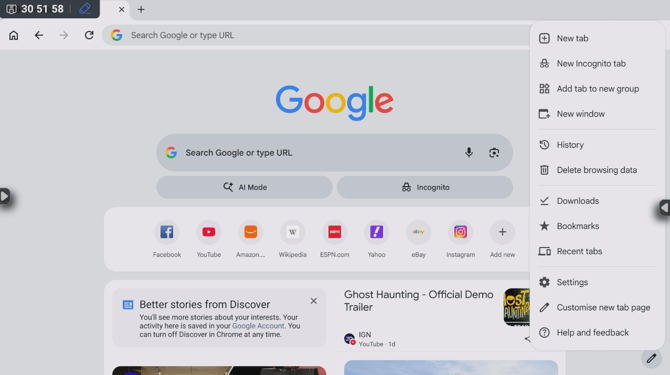
Open Google Chrome, tap the three dots in the top-right corner and select Settings.
Step 5: Change Chrome’s autofill service
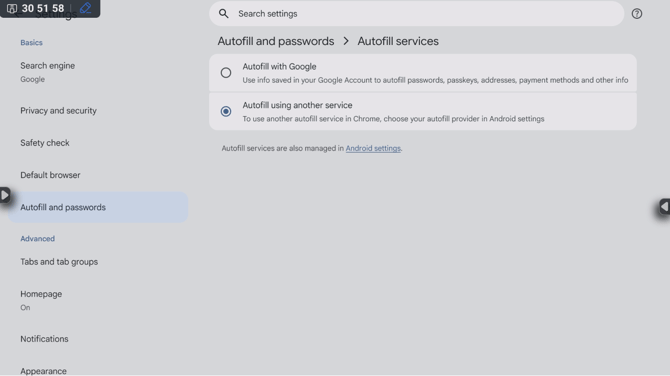
Go to Autofill and passwords > Autofill services. Depending on your Chrome version, this may be called Autofill settings.
Select Autofill using another service, then tap Restart Chrome when prompted.
Step 6: Check autofill on a website
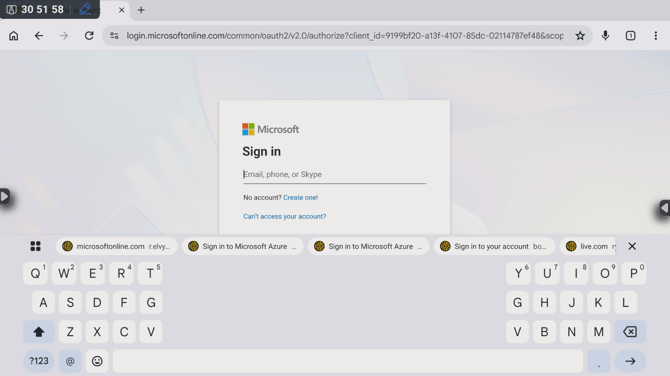
In Chrome, open a website with login details saved in Keeper.
Tap the username or password field, unlock Keeper if prompted and select the matching saved login.
Important notes
- If the Google Play Store is unavailable, or you cannot install Keeper or change an autofill setting, ask your IT team for assistance.
- On shared screens, use only accounts approved by your organisation. Sign out of Keeper and any apps or websites when you finish.
Troubleshooting
- Keeper does not appear: Check that KeeperFill is enabled and Keeper is selected as your screen’s autofill service. Close and reopen the app or website, then try again.
- Your saved login is not suggested: Check that the correct login details are saved in Keeper for the app or website you are opening.
- Keeper works in apps but not in Chrome: Repeat Steps 4 and 5. Confirm that Autofill using another service is selected and restart Chrome.
- Autofill works in some apps or websites but not others: Some apps and websites may not work reliably with autofill. Try another app or website to check whether the issue is limited to one service.
For further assistance, visit CommBox Support. When contacting support, include the affected app or website and a description of what happens. Do not include passwords.