
Applies to: Intelligent Display Gen 1 and Gen 2
Step-by-Step Instructions
1. Launch the Settings app from the on Home screen.
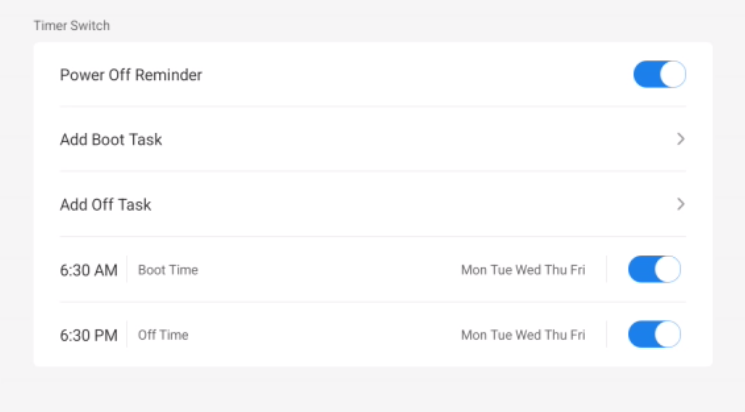
2. Go to System > Startup & Shutdown.
3. Scroll to the section labelled Timer Switch.
4. Tap Add Boot Task
Configure:
- Start Time – The time you want the screen to turn on
- Repeat Days – Select which days of the week the schedule applies (e.g. Monday to Friday)
-
Tap Save to save your Boot schedule.
5. Tap Add Off Task
Configure:
- Start Time – The time you want the screen to turn on
- Repeat Days – Select which days of the week the schedule applies (e.g. Monday to Friday)
- Tap Save to save your Off schedule.
6. Example:
💡 Tip: Power scheduling is great for classrooms and meeting rooms that follow regular hours.
- You can use the toggle buttons to enable/disable the power schedule without removing the configuration