
Quick summary
CommBox Classic S5 screens running Huntsman firmware can be enrolled in Microsoft Intune as corporate-owned Android Enterprise dedicated devices.
Once enrolled, the screen remains a CommBox Classic S5 experience, including CommBox Experience. The Google Play Store is managed by your organisation’s Intune policies, so users can only access apps approved by the IT administrator.
Applies to
- CommBox Classic S5
- Huntsman firmware
- Microsoft Intune
- Android Enterprise dedicated device enrolment
Before you begin
Before enrolling the screen, your IT administrator must:
- Set up Android Enterprise dedicated device management in Microsoft Intune.
- Connect their Intune tenant to Managed Google Play.
- Create a Corporate-owned dedicated device enrolment profile.
- Provide the enrolment token for that profile.
For instructions, see Microsoft’s guide: Set up Intune enrolment for Android Enterprise dedicated devices.
Important: Enrolment must be completed during the screen’s initial Android setup. It cannot be started after the factory setup wizard has been completed.
Enrol the screen
Step 1: Start the Android setup wizard
If you are setting up the screen for the first time, turn it on to begin the Android setup wizard.
If the screen has already been set up, factory reset it to return to the Android setup wizard before continuing.
Tip: A factory reset removes installed apps, settings and locally stored content. Back up anything you need before continuing.
Step 2: Connect the screen to the internet
Turn on the screen and follow the on-screen setup prompts.
Connect the screen to a Wi-Fi network with internet access when prompted.
Step 3: Start Intune enrolment
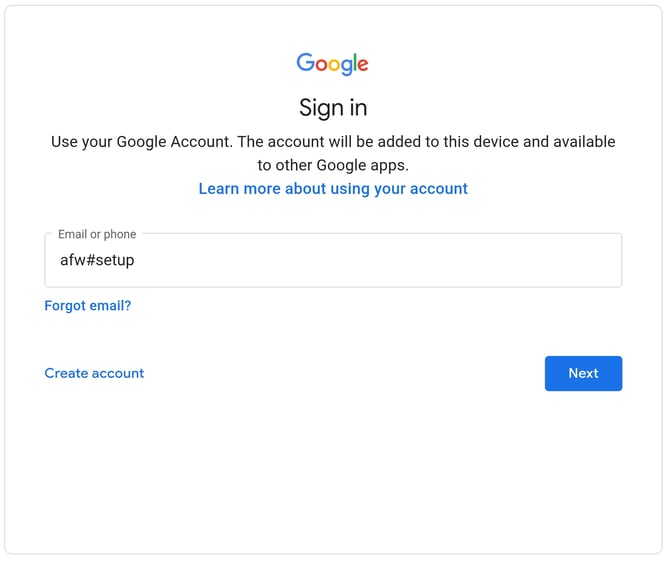
When the Google sign-in screen appears, do not enter a Google account.
- In the Email or phone field, enter
afw#setup. - Select Next.
- Follow the on-screen prompts to install Android Device Policy and begin the enrolment process.
Step 4: Enter the Intune enrolment token
When prompted for an enrolment code, enter the token provided by your IT administrator.
IT administrators can find this token in the Intune admin centre:
Devices > Enrollment > Android > Corporate-owned dedicated devices > [select enrolment profile] > Token
Select Show token to view the enrolment code.
For Microsoft’s detailed token-enrolment steps, see Enrol your corporate Android device with the Microsoft Intune app.
Step 5: Complete the setup wizard
Continue following the on-screen prompts until setup is complete.
The screen will enrol as a corporate-owned device and install the Intune management profile.
Step 6: Enable CommBox Experience
Once enrolment is complete, open the Experience app on the screen.
Toggle CommBox Experience on to enable the CommBox Experience interface.
What changes after enrolment?
The CommBox Classic S5 will continue to operate as normal, and CommBox Experience can be enabled and used as usual.
The main difference is that the Google Play Store is managed by Intune:
- Only apps approved by your IT administrator are shown in the Play Store.
- IT administrators can deploy required Managed Google Play apps to enrolled screens.
- The CommBox Store can continue to update pre-installed CommBox tools and tools installed through the managed Play Store.
- The CommBox Store cannot install new tools that are not already installed on the screen due to Intune policies.
- A device PIN is not requested during Intune enrolment. If required, it can be set later on the screen or enforced through an Intune policy.
Microsoft provides further information about managing Android devices, apps, policies and compliance in its Android device management deployment guide.
Known issue: deploying APK files through Intune
As of 4 September 2026, APK files uploaded and deployed through Intune may be rejected by the screen unless Unknown sources is enabled on the screen.
Enabling this setting allows the APK installation to proceed. Intune’s built-in controls still prevent unauthorised app sideloading. This does not affect apps chosen directly from the Google Play Store in the Intune backend.
This issue will be addressed in a future CommBox firmware update.
Need help?
Contact your IT administrator for help with Intune profiles, app assignments and enrolment tokens. For help with your CommBox screen, contact CommBox Support.