
Applies to
CommBox Classic S5 running Huntsman firmware or later; a CommBox account.
Before you begin
-
A CommBox account.
-
For cloud files and folders, connect the relevant service first in Connected Services at commboxexp.com.
Step-by-step instructions
Step 1: Sign in to CommBox Experience
On a laptop, tablet or mobile device, go to commboxexp.com and sign in to your CommBox account.
Step 2: Create a collection
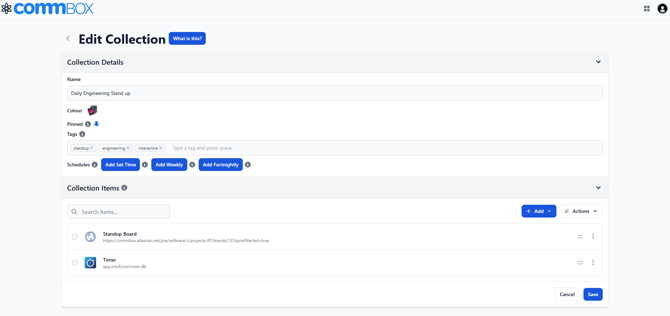
Select Tray, then create a new collection.

Step 3: Add and arrange your content
-
Add files and folders from connected cloud services.
-
Add web links and applications.
-
Arrange items in the order you want to use them.
-
Optionally pin the collection, add tags or schedule it for selected dates and times.
Step 4: Save the collection
Save your collection when it is ready.
Step 5: Open Tray on the screen
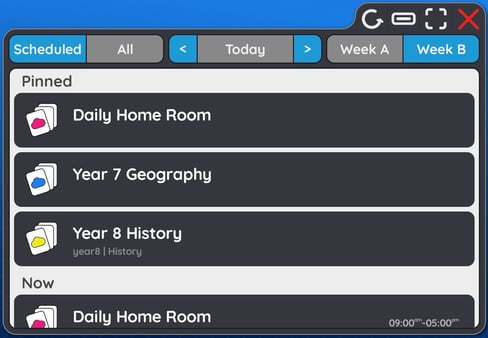
Sign in to the same CommBox account on the Classic S5, then open the Tray app. Select a collection and tap an item to open it on the screen.
Important notes
Scheduled collections are useful for recurring lessons, meetings and events.
A collection is personal to the CommBox account that created it.
Troubleshooting
If a collection is missing, confirm you are signed in to the same CommBox account.
If a cloud item is unavailable, check that its source service is still connected and that you still have permission to access it.