
What’s New - March 2026
CommBox EXP: Lock the Home Screen and Side Menus
You can now lock the Home screen and side menus to prevent changes being made by users.
This helps:
-
Maintain a consistent Home screen layout
-
Prevent accidental changes to settings or layout
-
Keep shared screens organised in classrooms and meeting spaces
This feature is ideal for schools and shared environments where screen configuration needs to remain consistent. Available now in CommBox EXP under the "Home and Side Menus" section.
Autofill Improvements
Autofill has been enhanced to provide more accurate and reliable suggestions.
This improves:
-
Speed when entering information
-
Accuracy of predicted entries
-
Overall usability across supported applications
Tool Updates - Improved Tool Stability
We’ve improved the stability and reliability of built-in tools to reduce unexpected behaviour and improve performance during lessons and meetings.
How to Update
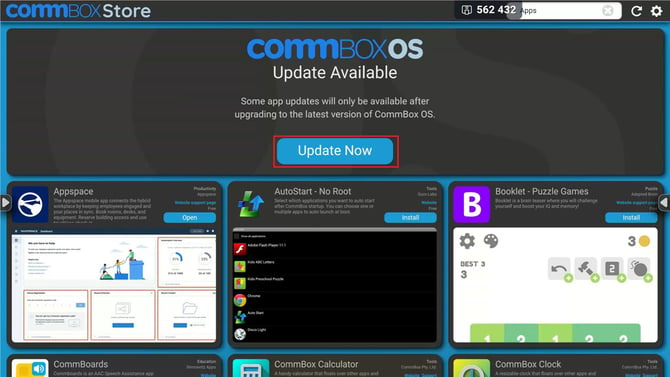
- Navigate to the CommBox Store. You will be prompted for a CommBox OS bundle update, select Update now.
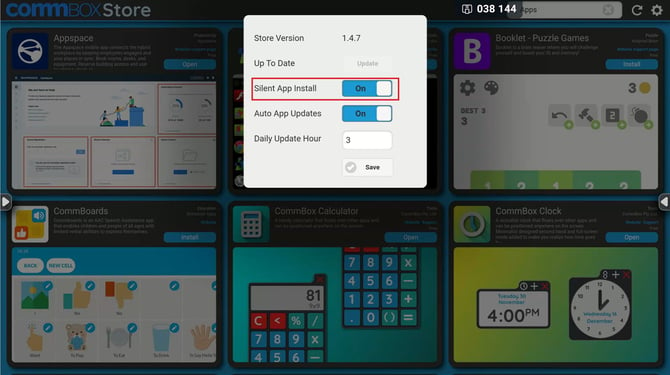
- Before selecting Update, navigate to Settings on the top right-hand side of your screen.
- Ensure that Silent App Install is turned on.
- Then select Update Now
Note: If you cannot see the upgrade package, please refer to our network document below and ensure that all ports required for "OTA Updates" (starting from page 71) are open.
Step 2: Check that all CommBox Tools are updated
1. Scroll to CommBox Tools in the CommBox Store.
2. Check to see if any Tools have 'Update' on the blue bottom. If so, please update the Tools as well.