
Applies To
CommBox Classic S4, CommBox Classic S4+, CommBox Classic S5, Microsoft Entra ID (formerly Azure AD)
Before your organsation can log into CommBox OS on the CommBox Classic S4 and S4+ with your Microsoft credentials, your system administrator must approve the CommBox Exp application.
Option 1: Approve using the Admin Consent Link (Recommended)
This method ensures that all required CommBox Experience permissions are presented for administrator approval, including SharePoint access.
- Locate your organisation's Microsoft Tenant ID in the Microsoft Entra Admin Center.
- Copy the following URL:
https://login.microsoftonline.com/<CUSTOMER-TENANT-ID>/adminconsent?client_id=ec2dcfde-05cf-4e74-b7df-2a031373eb84 - Replace
<CUSTOMER-TENANT-ID>with your organisation's Microsoft Tenant ID. - Open the updated URL in a web browser.
- Sign in using a Microsoft administrator account with permission to grant tenant-wide consent.
- Review the requested permissions and select Accept to approve CommBox Experience.
Option 2: Approve through Microsoft Entra Admin Center
If CommBox Experience is already listed under your organisation's Enterprise Applications:
- Open the Microsoft Entra Admin Center.
- Navigate to Entra ID → Enterprise applications → All applications.
- Search for and select CommBox Experience.
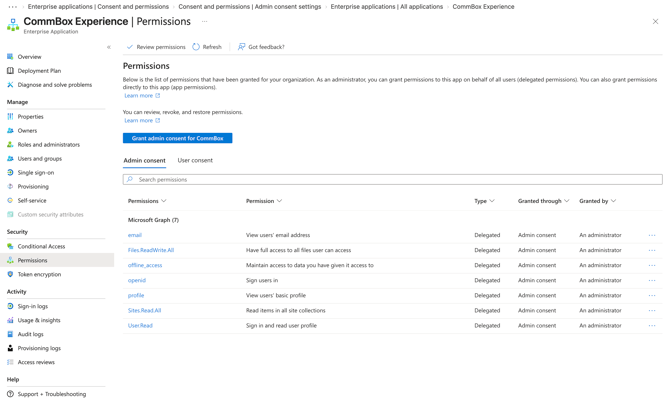
- Under Security, select Permissions.
- Select the blue Grant admin consent for CommBox button.
- Review the permissions and approve the request using your administrator account.
Verify the Permissions
Once approved, return to CommBox Experience → Permissions in Microsoft Entra ID.
Under Admin consent, confirm that the required Microsoft Graph permissions have been granted.
These include:
| Permission | Purpose |
|---|---|
email |
View the user's email address |
Files.ReadWrite.All |
Access and manage files the signed-in user can access |
offline_access |
Maintain authorised access without requiring frequent sign-ins |
openid |
Enable Microsoft account sign-in |
profile |
Access basic user profile information |
Sites.Read.All |
Read items across SharePoint site collections |
User.Read |
Sign in and read user profile information |
All permissions should show Admin consent under the Granted through column.
Important: We recommend using one of the two methods above rather than approving permissions only through the CommBox Experience portal. The portal sign-in approval process may not include the required SharePoint permission.
If you experience issues approving CommBox Experience or accessing Microsoft-integrated features, please contact CommBox Support for assistance.